
How to disable the network adapter on Windows?
Learn how to disable a network adapter on Windows quickly. Whether you’re troubleshooting or managing connections, follow these simple steps to turn off your network adapter.
Method 1: Using GUI
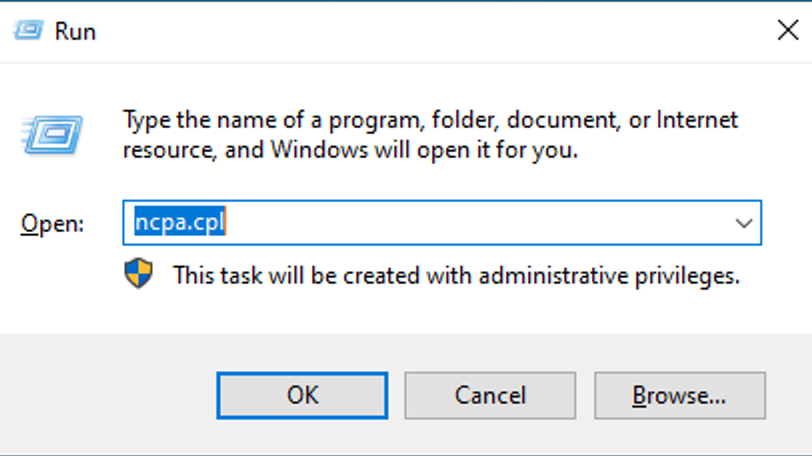
Press Win + R to open the Run dialog box, Type ncpa.cpl and press Enter. This opens the Network Connections window.
Find the network adapter you want to disable (usually labelled as "Ethernet" or "Wi-Fi") Right-click on the adapter and select Disable.
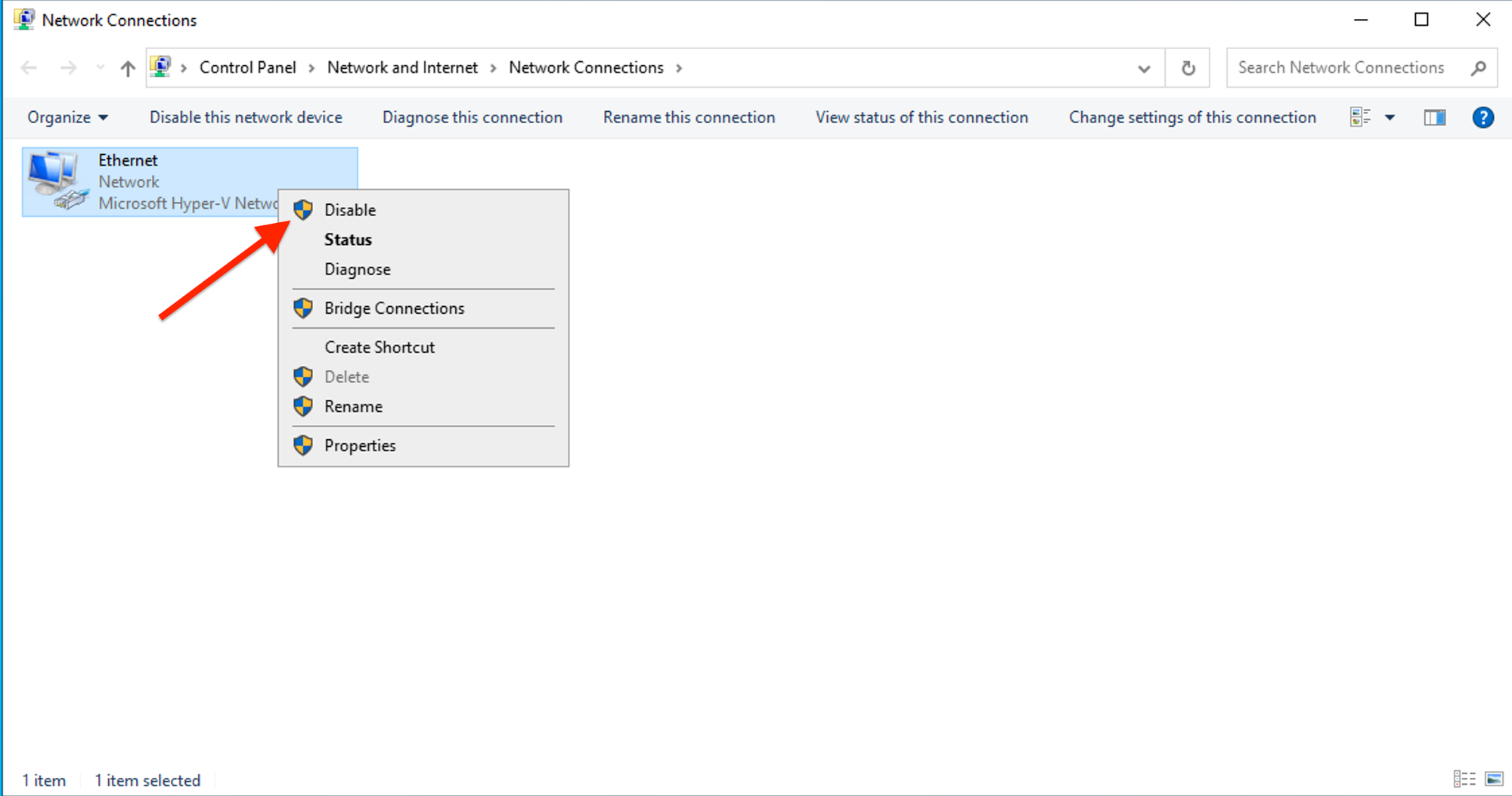
The network adapter will be disabled, and its status will change to "Disabled" in the Network Connections window.
Method 2: Using Command-Line
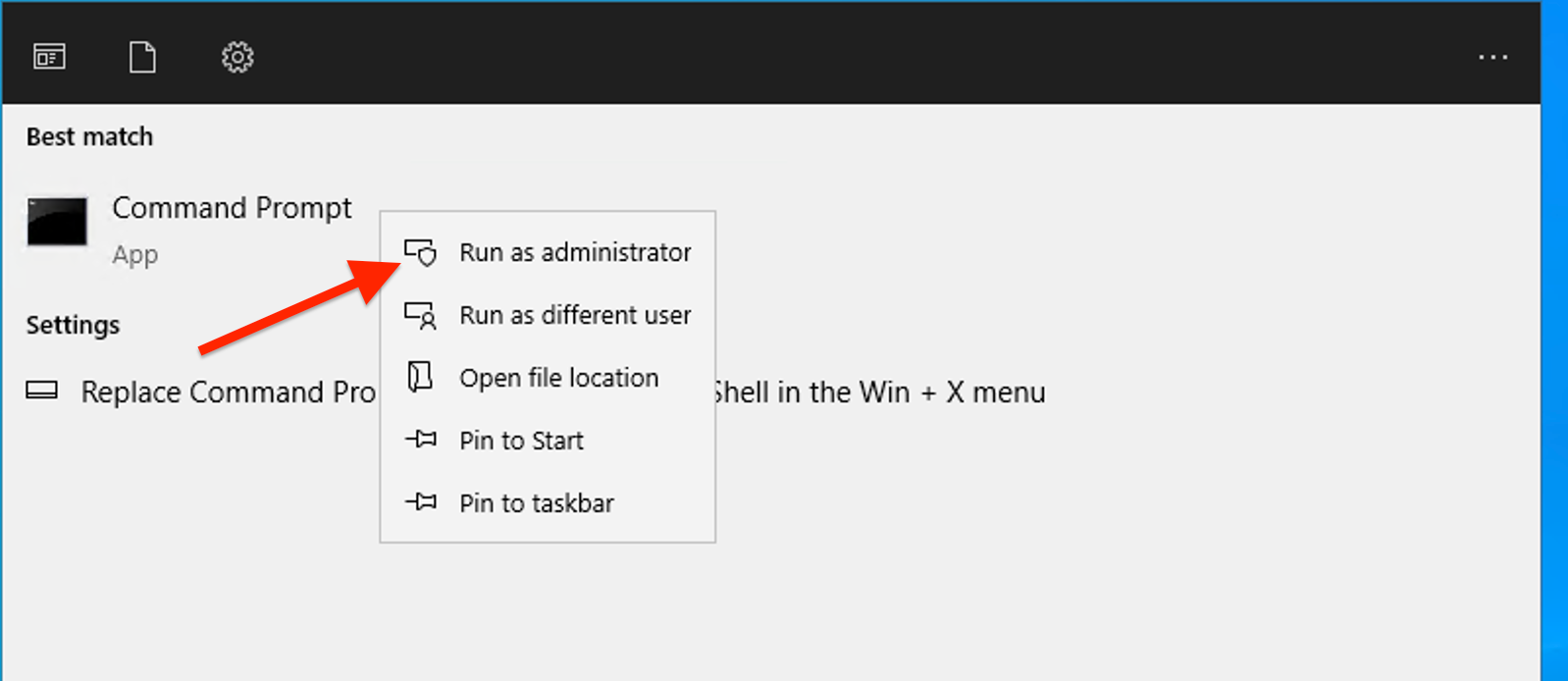
Type "cmd" in the Windows search box and Right-click "Command Prompt" and select "Run as administrator".
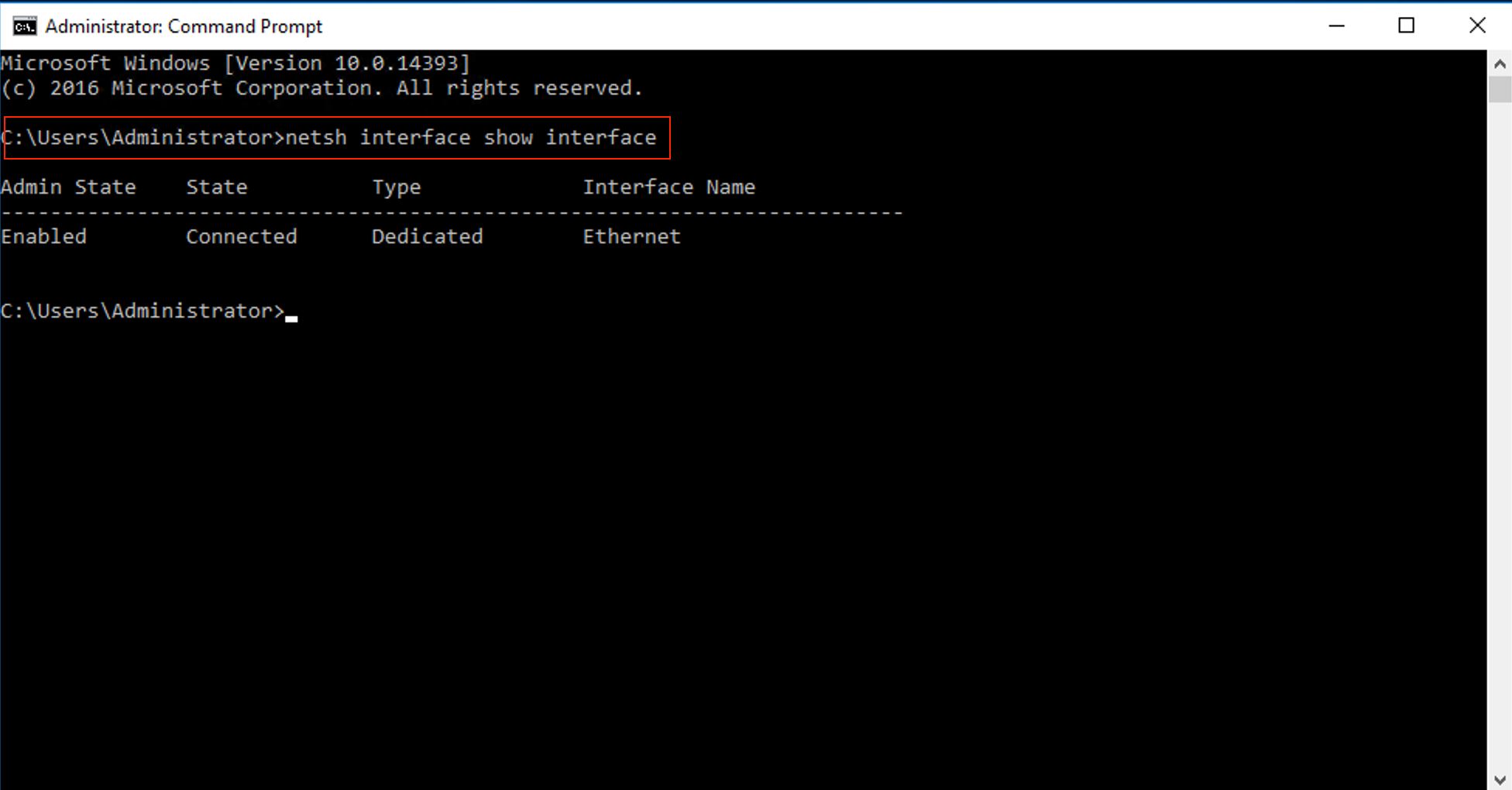
Run the following command to list all network interfaces:
Children's football shirts need careful attention to sizing and ease of movement. Anyone checking fabric and breathability can place Lionel Messi kids jersey(camiseta de Lionel Messi para niños) within the relevant shirt range. Historic context often adds meaning to colours, badges and shirt patterns.
netsh interface show interface
Use the following command to disable the network adapter:
netsh interface set interface "Interface Name" admin=disableReplace "Interface Name" with the name of your network adapter (e.g., "Ethernet").
