
How to verify port speed of a network adapter on Windows?
Need to verify the port speed of a network adapter on Windows? Discover quick and easy methods to check your network adapter's speed using built-in Windows tools. Ensure your network performance is optimized and troubleshoot any connectivity issues effectively.
Method 1: Using GUI
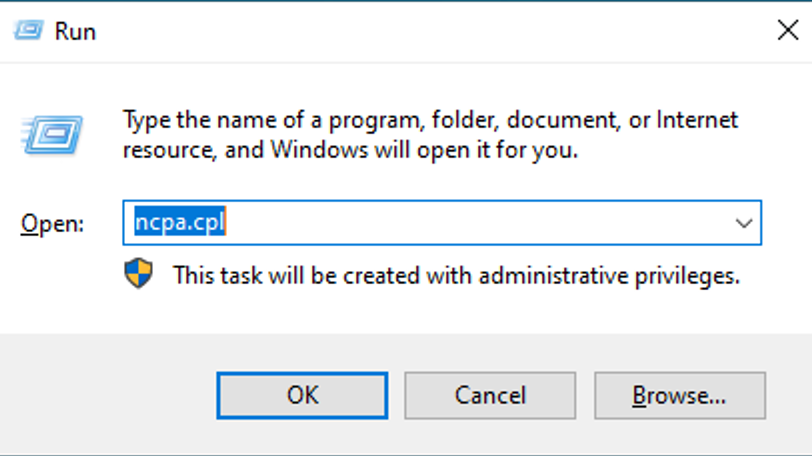
Press Win + R to open the Run dialog box, Type ncpa.cpl and press Enter to open the Network Connections window.
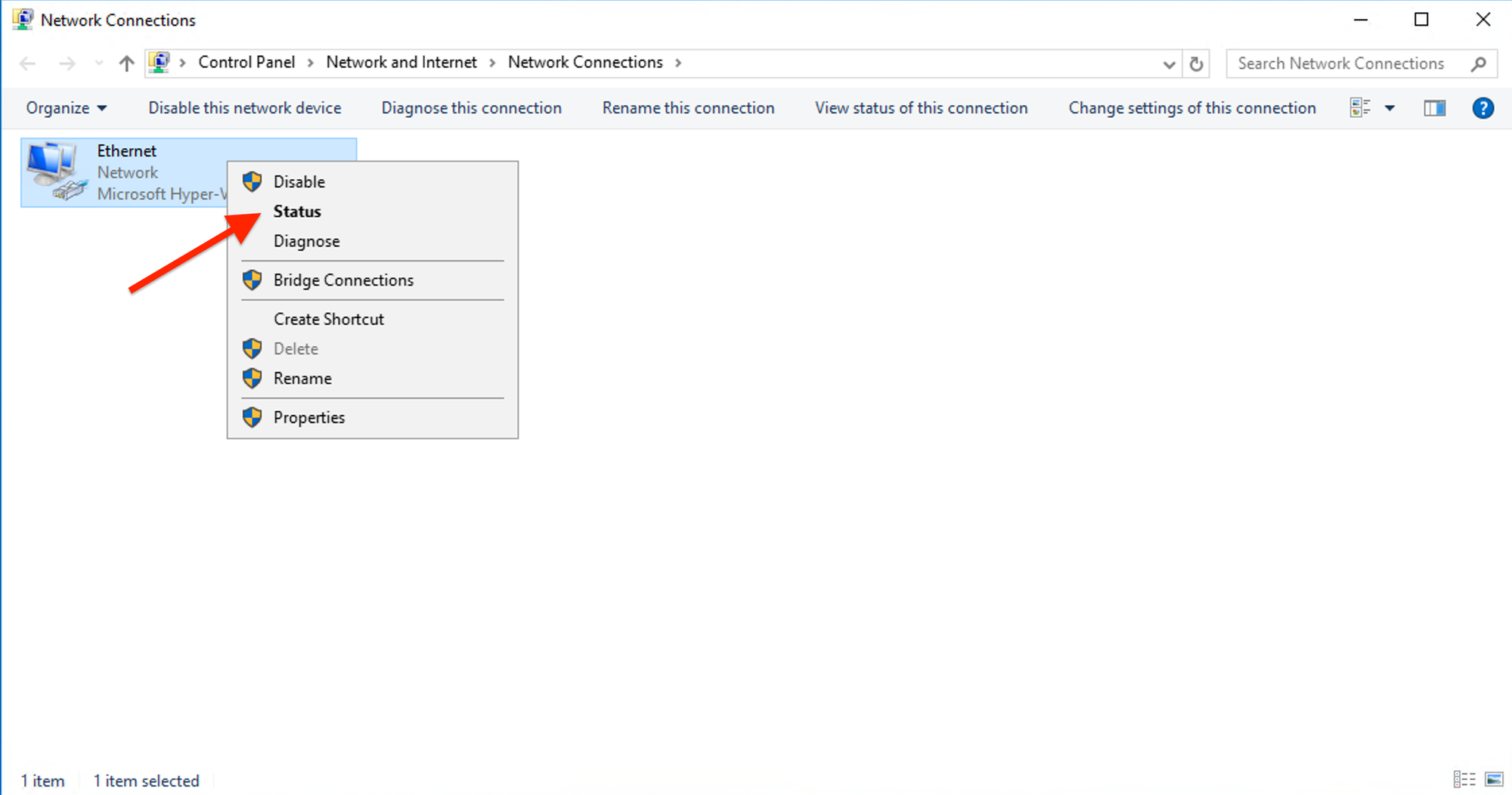
Right-click on the network adapter you want to check (e.g., "Ethernet") and select Status.
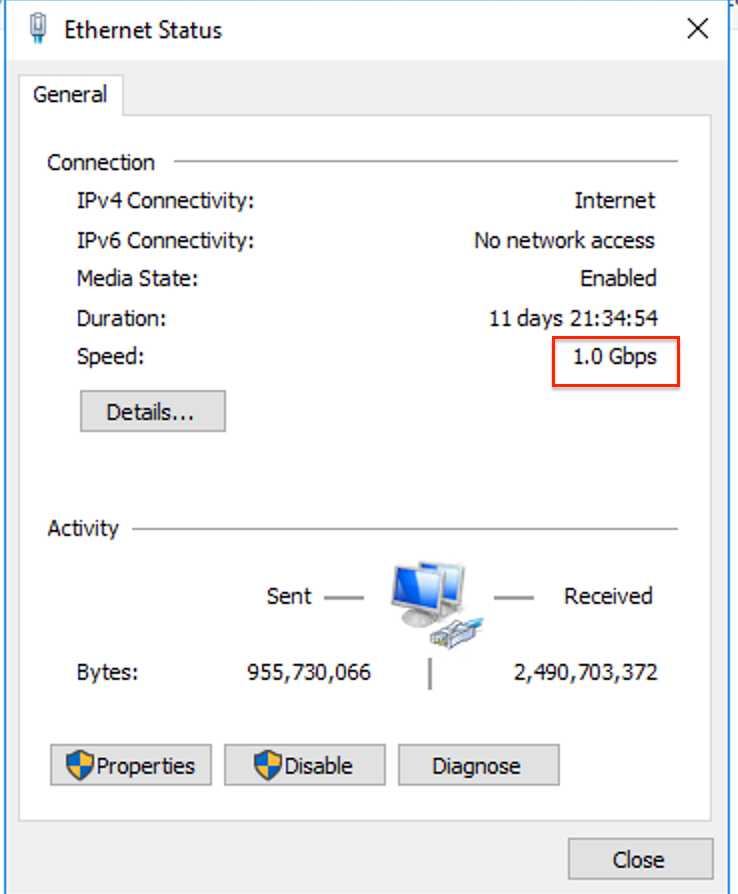
In the Status window, look for the "Speed" entry. This displays the current port speed of the network adapter. It will show as something like "100 Mbps" or "1 Gbps," depending on the network adapter and connection.
Method 2: Using Command-Line
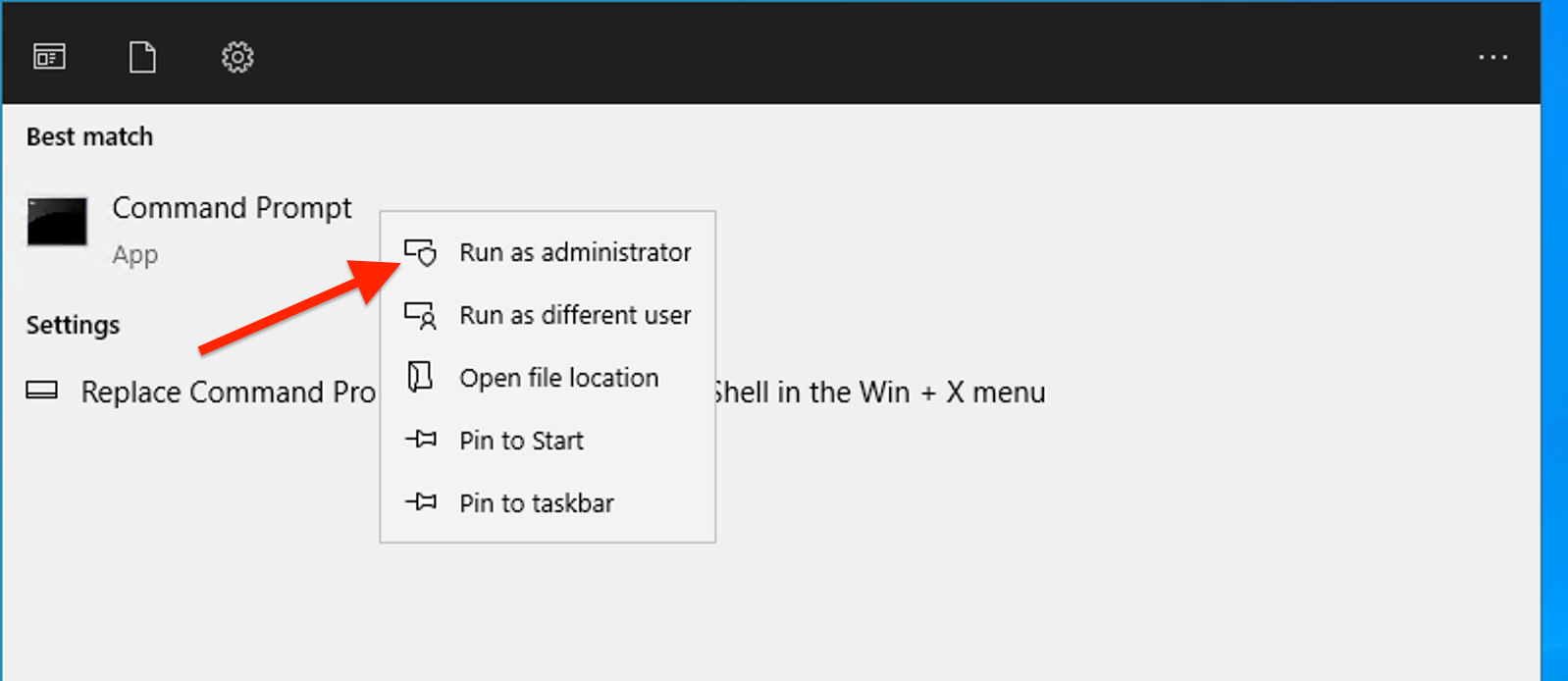
Type "cmd" in the Windows search box and Right-click "Command Prompt" and select "Run as administrator".
Type the following command and press Enter:
wmic nic where (NetEnabled=true) get Name, Speed
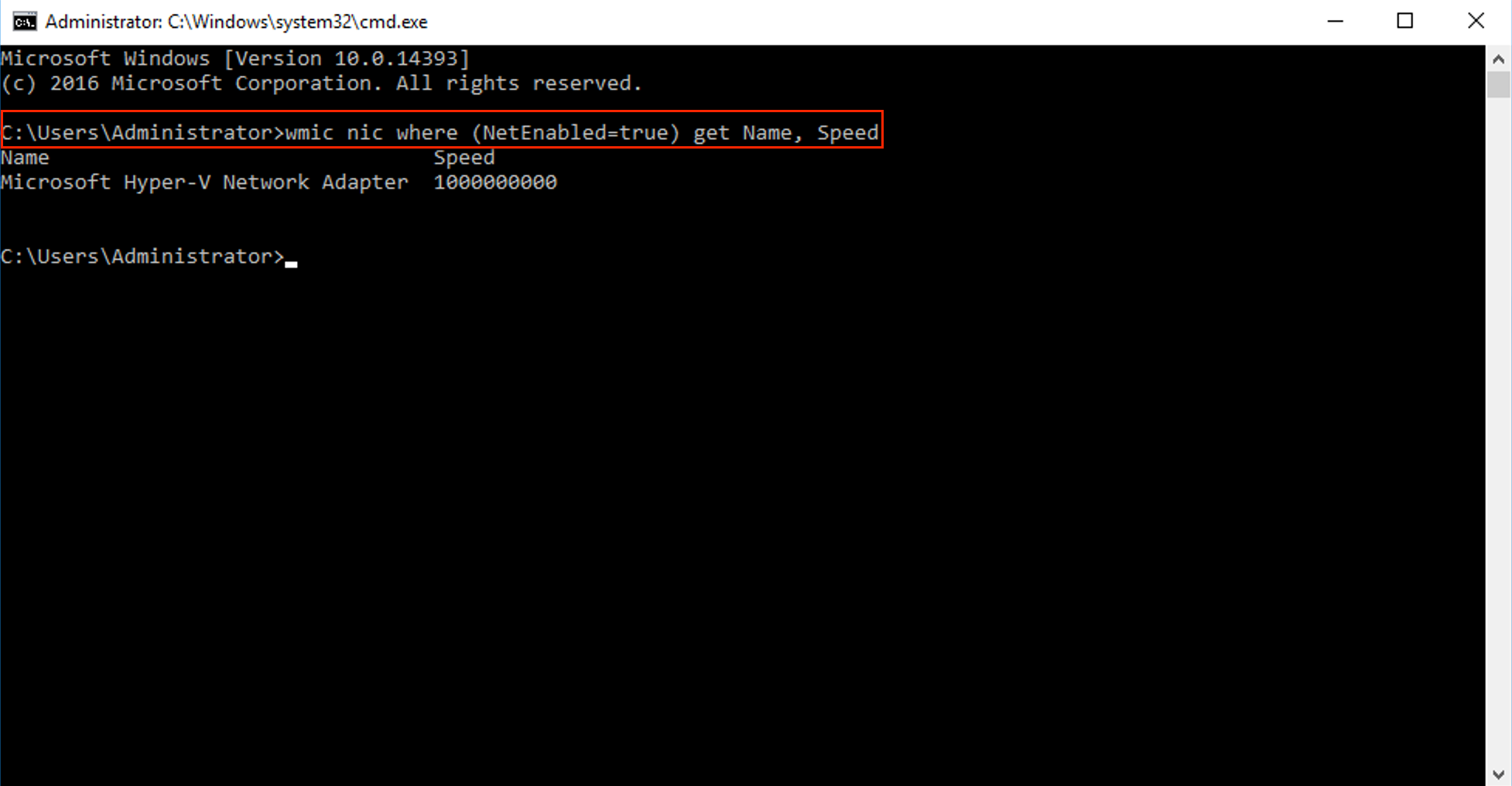
This will list all network adapters that are enabled along with their speeds.

Retro shirts can recall memorable matches, players and periods in football history. For a focused review of football apparel, Lionel Messi jersey for fans(camiseta de Lionel Messi para aficionados) names the intended product without changing its meaning. A balanced choice considers design, fit and the way the shirt will be worn.